Create a Windows Virtual Machine
Create one or more virtual machines from the Virtual Machines page.
For creating Linux virtual machines, please refer to this page.
How to Create a Windows VM
Header Section
- Create a single VM instance or multiple VM instances.
- Set the VM name.
- (Optional) Provide a description for the VM.
- (Optional) Select the VM template
windows-iso-image-base-template. This template will add a volume with thevirtiodrivers for Windows.
Basics Tab
- Configure the number of
CPUcores assigned to the VM. - Configure the amount of
Memoryassigned to the VM.
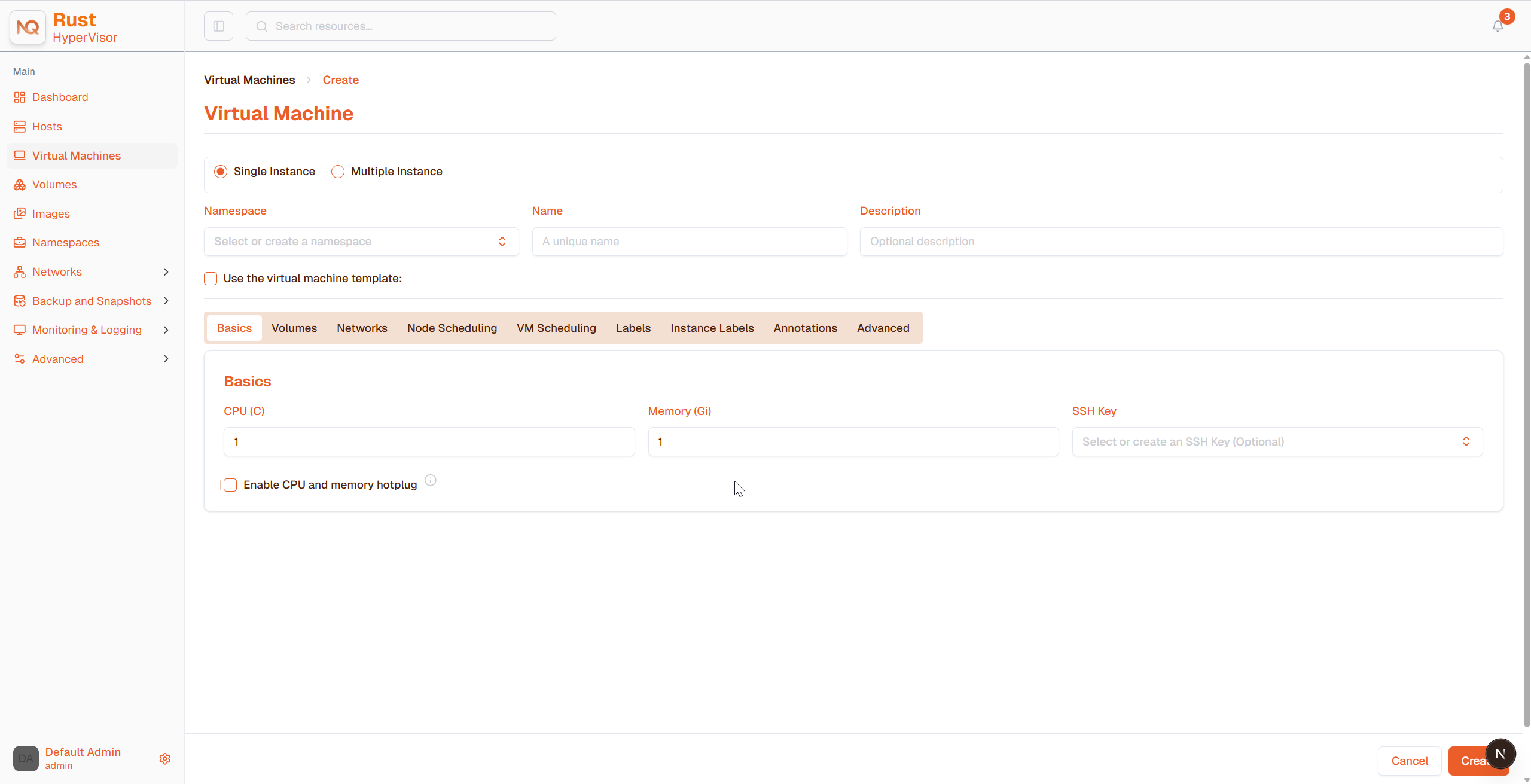
As mentioned above, it is recommended that you use the Windows VM template. The Volumes section will describe the options which the Windows VM template created automatically.
The bootOrder values need to be set with the installation image first. If you change it, your VM might not boot into the installation disk.
Volumes Tab
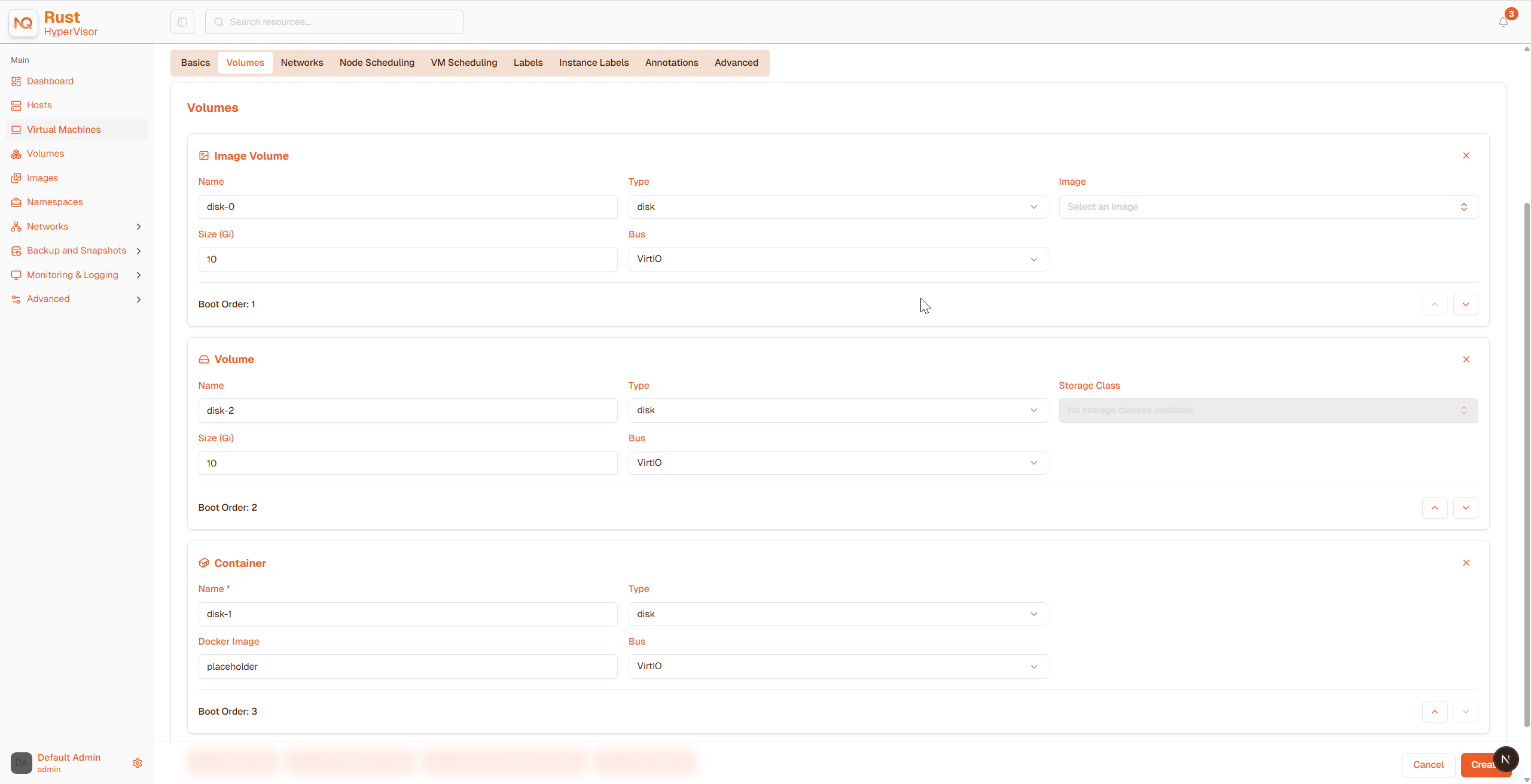
- The first volume is an
Image Volumewith the following values:Name: The valuecdrom-diskis set by default. You can keep it or change it.Type: Selectcd-rom.Image: Select the Windows image to be installed. See Upload Images for the full description on how to create new images.Size: The value20is set by default. You can change it if your image has a bigger size.Bus: The valueSATAis set by default. It's recommended you don't change it.
- The second volume is a
Volumewith the following values:Name: The valuerootdiskis set by default. You can keep it or change it.Type: Selectdisk.StorageClass: You can use the default StorageClasshypervisor-longhornor specify a custom one.Size: The value32is set by default. See the disk space requirements for Windows Server and Windows 11 before changing this value.Bus: The valueVirtIOis set by default. You can keep it or change it to the other available options,SATAorSCSI.
- The third volume is a
Containerwith the following values:Name: The valuevirtio-container-diskis set by default. You can keep it or change it.Type: Selectcd-rom.Docker Image: The valueregistry.suse.com/suse/vmdp/vmdp:2.5.4.2is set by default. We recommend not changing this value.Bus: The valueSATAis set by default. We recommend not changing this value.
- You can add additional disks using the buttons
Add Volume,Add Existing Volume,Add VM Image, orAdd Container.
Networks Tab
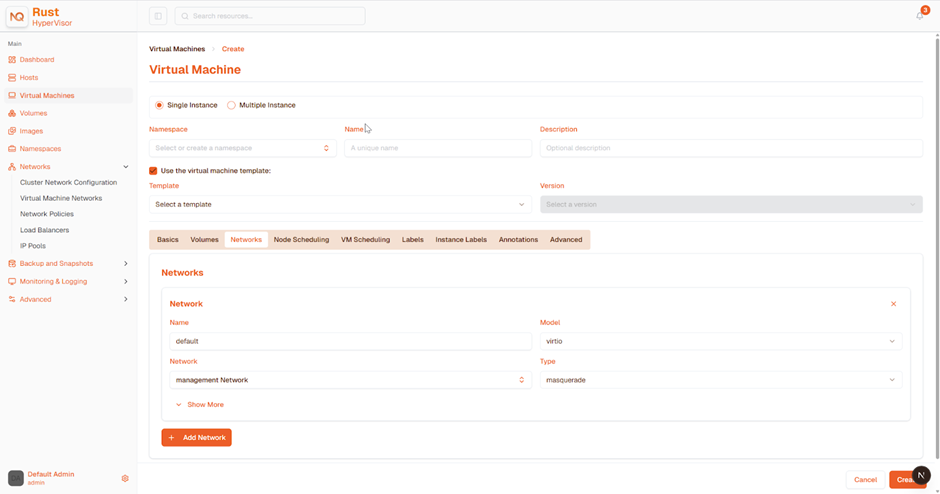
- The Management Network is added by default with the following values:
Name: The valuedefaultis set by default. You can keep it or change it.Model: The valuee1000is set by default. You can keep it or change it to the other available options from the dropdown.Network: The valuemanagement Networkis set by default. You can't change this option if no other network has been created. See Hypervisor Network for the full description on how to create new networks.Type: The valuemasqueradeis set by default. You can keep it or change it to the other available option,bridge.
- You can add additional networks by clicking
Add Network.
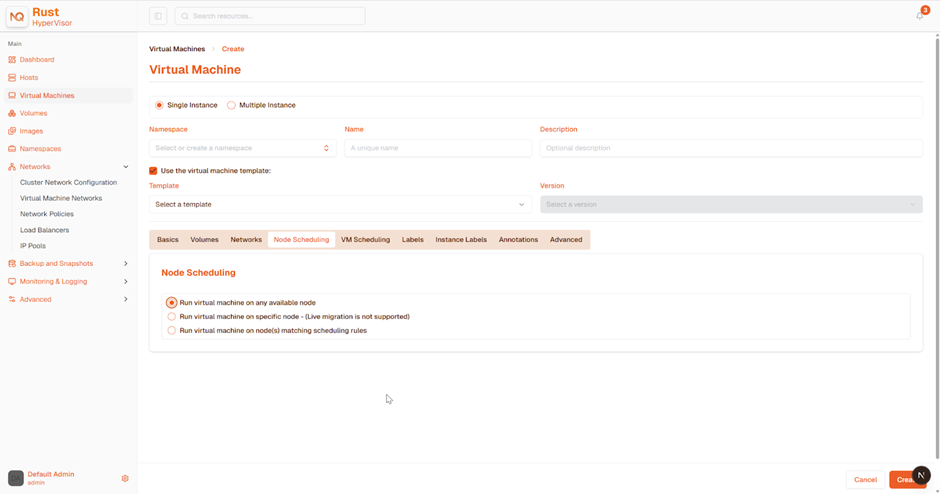
Changing the Node Scheduling settings can impact Hypervisor features, such as disabling Live migration.
Node Scheduling Tab
Node Schedulingis set toRun VM on any available nodeby default. You can keep it or change it to the other available options from the dropdown.
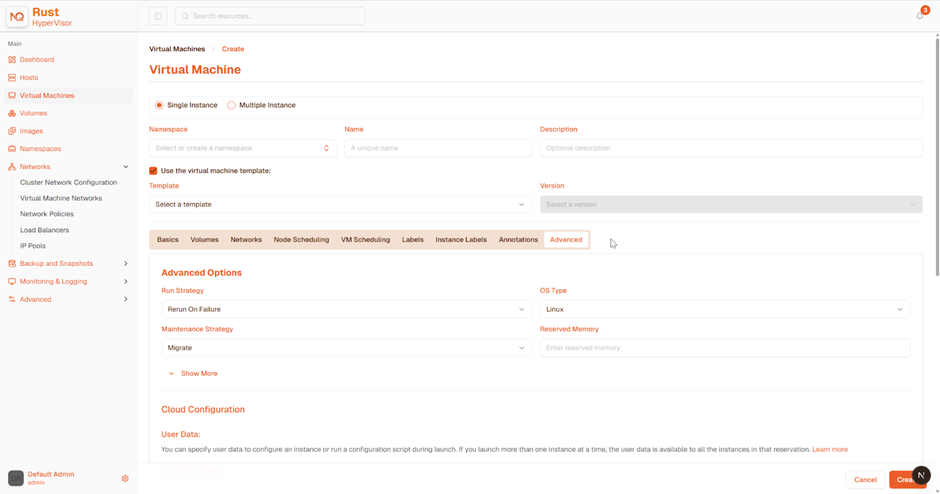
Advanced Options Tab
OS Type: The valueWindowsis set by default. It's recommended you don't change it.Machine Type: The valueNoneis set by default. It's recommended you don't change it. See the KubeVirt Machine Type documentation before you change this value.- (Optional)
Hostname: Set the VM hostname. - (Optional)
Cloud Config: BothUser DataandNetwork Datavalues are set with default values. Currently, these configurations are not applied to Windows-based VMs. - (Optional)
Enable TPM,Booting in EFI mode,Secure Boot: Both the TPM 2.0 device and UEFI firmware with Secure Boot are hard requirements for Windows 11.
Currently, only non-persistent vTPMs are supported, and their state is erased after each VM shutdown. Therefore, Bitlocker should not be enabled.
Footer Section
Once all the settings are in place, click on Create to create the VM.
If you need to add advanced settings, you can edit the VM configuration directly by clicking on Edit as YAML.
And if you want to cancel all changes made, click Cancel.