USB Installation
Create a bootable USB flash drive
There are a couple of ways to create a USB installation flash drive.
Refer to the Hypervisor interactive ISO hangs with the USB installation method for details and a workaround.
No matter which tool you use, creating a bootable device erases your USB device data. Please back up all data on your USB device before making a bootable device. :::
Rufus
Rufus allows you to create an ISO image on your USB flash drive on a Windows computer.
Open Rufus and insert a clean USB stick into your computer.
Rufus automatically detects your USB. Select the USB device you want to use from the Device drop-down menu.
For Boot Selection, choose Select and find the Hypervisor installation ISO image you want to burn onto the USB.
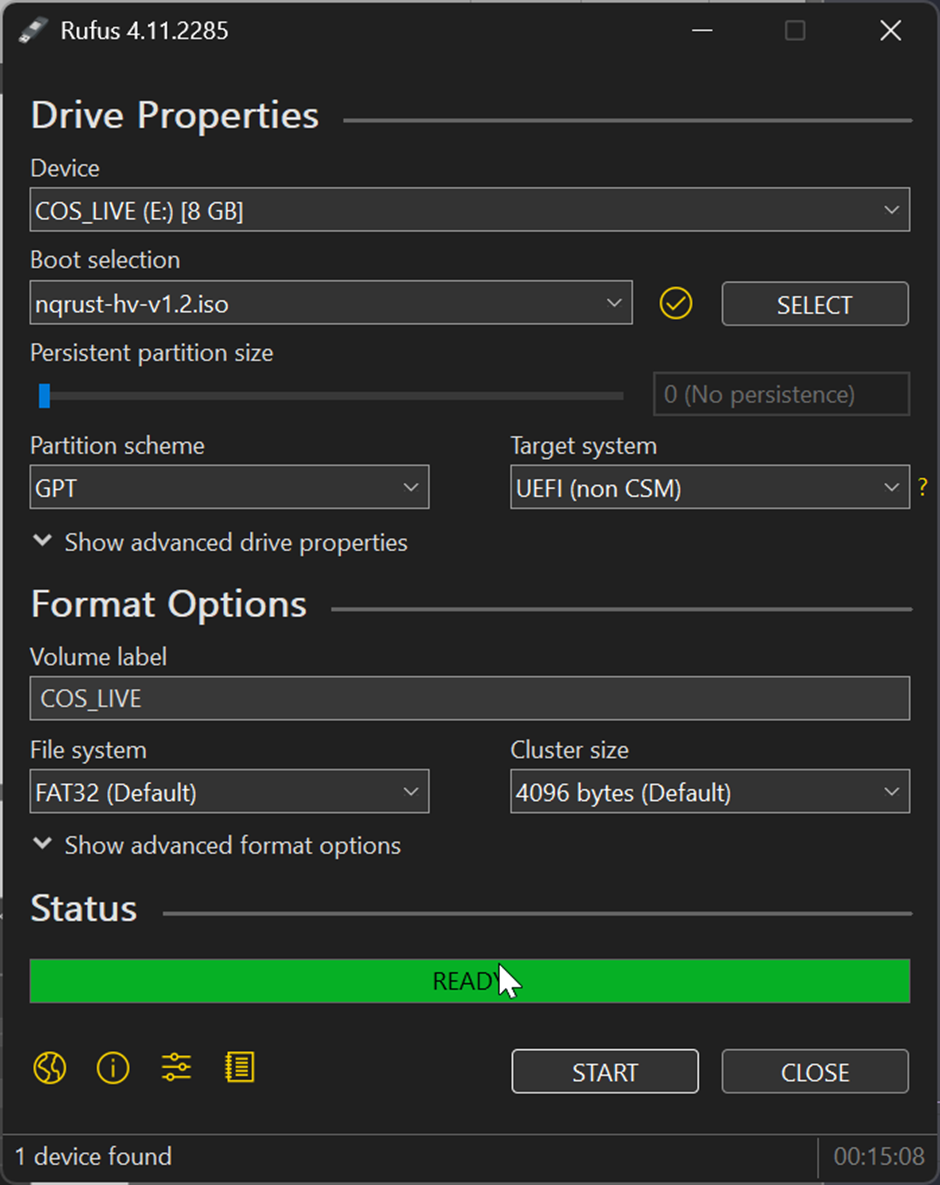 info
infoIf using older versions of Rufus, both
DD modeandISO modeworks.DD modeworks just like theddcommand in Linux, and you can't browse partitions after you create a bootable device.ISO modecreates partitions on your device automatically and copies files to these partitions, and you can browse these partitions even after you create a bootable device.