ISO Installation
NQRust-HV is distributed as a bootable appliance image that can be installed directly on a bare-metal server. To obtain the ISO image, please contact the Nexus Quantum Technologies team at contact@nexusquantum.id our administrator will provide you with the appropriate version for your deployment environment.
During the installation, you can either choose to create a new Hypervisor cluster or join the node to an existing Hypervisor cluster.
Installation Steps
Mount the Hypervisor ISO file and boot the server by selecting the
Hypervisor Installeroption.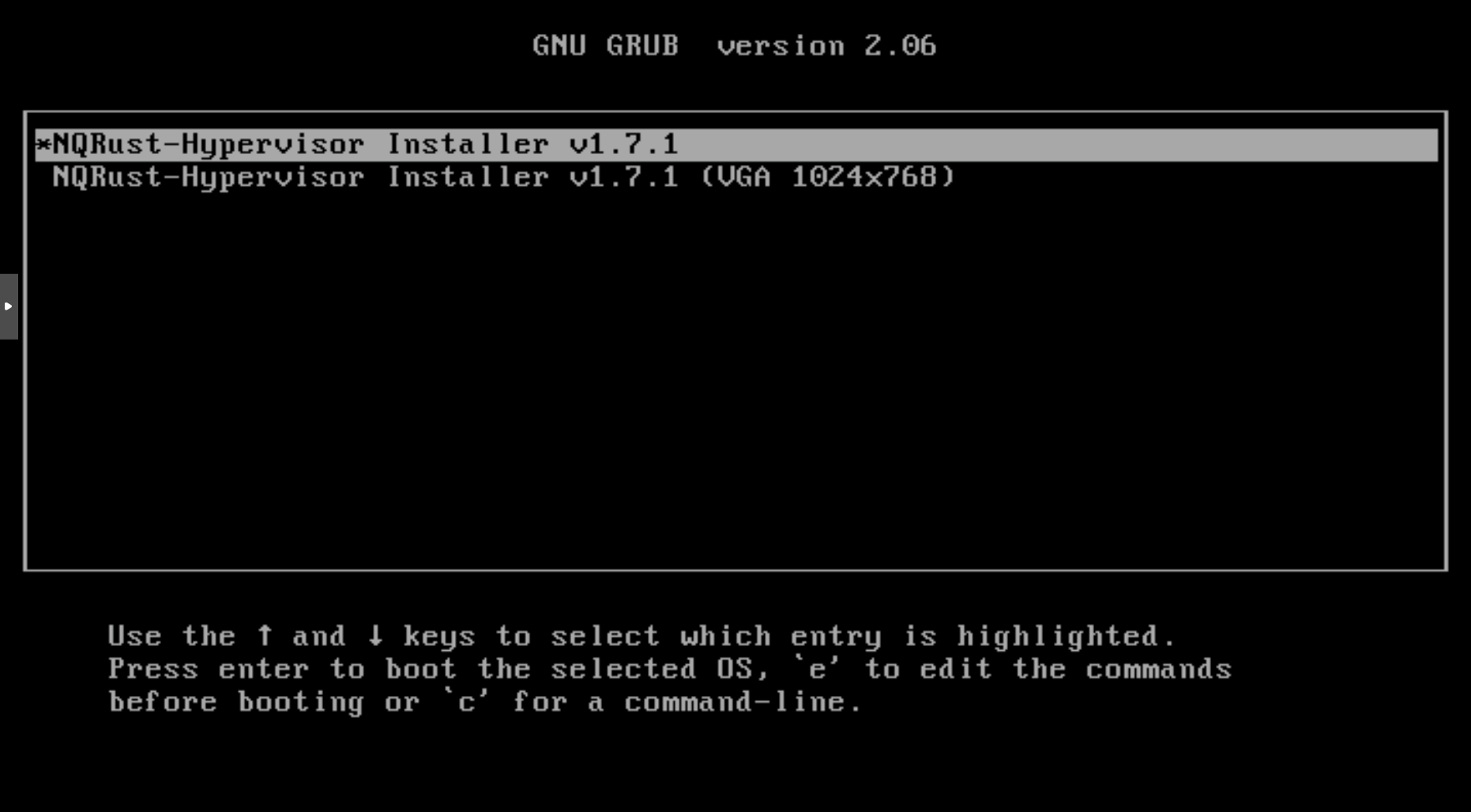
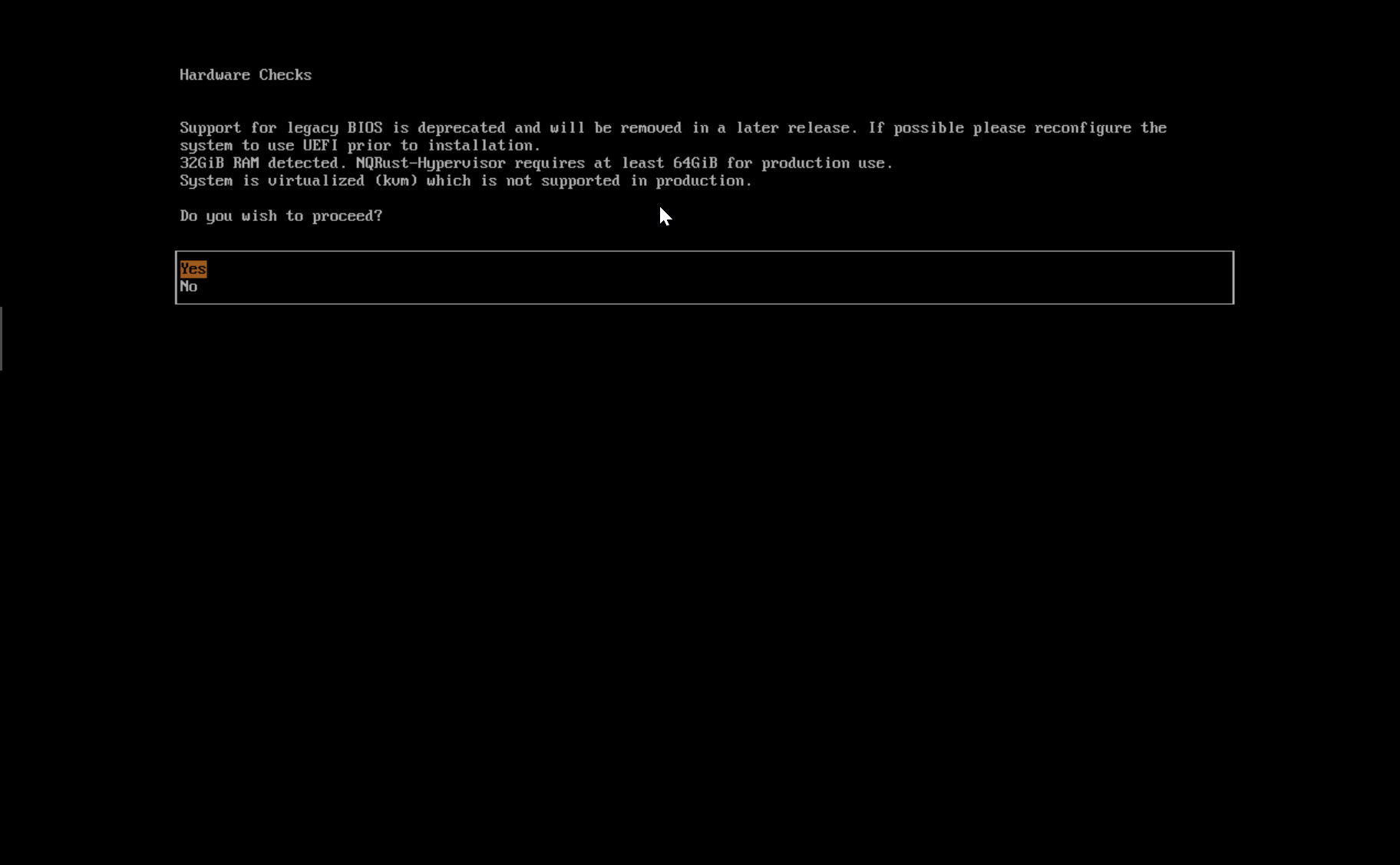
The installer automatically checks the hardware and displays warning messages if the minimum requirements are not met. The Hardware Checks screen is not displayed if all checks are passed.
Use the arrow keys to choose an installation mode. By default, the first node will be the management node of the cluster.
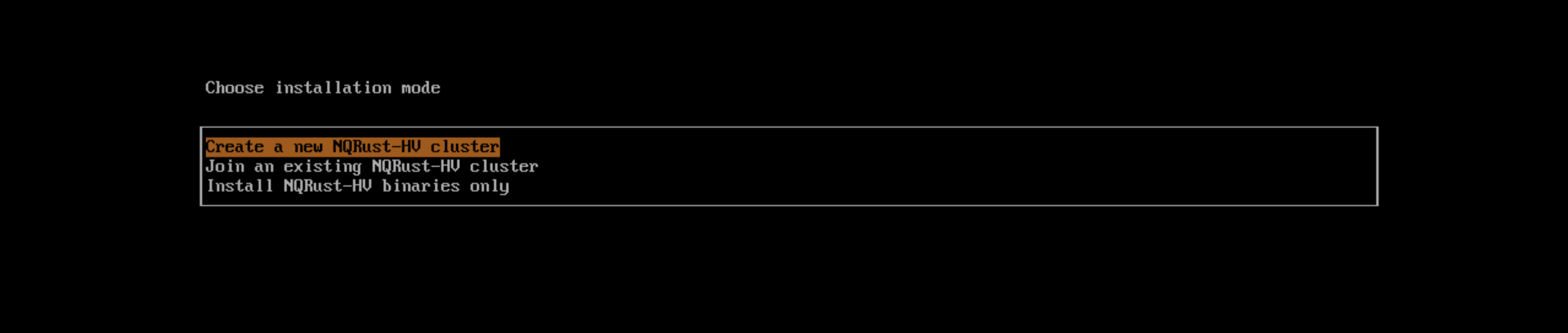
Create a new Hypervisor cluster: creates an entirely new Hypervisor cluster.Join an existing Hypervisor cluster: joins an existing Hypervisor cluster. You need the VIP and cluster token of the cluster you want to join.Install Hypervisor binaries only: If you choose this option, additional setup is required after the first bootup.
infoWhen there are 3 nodes, the other 2 nodes added first are automatically promoted to management nodes to form an HA cluster. If you want to promote management nodes from different zones, you can add the node label
topology.kubernetes.io/zonein the os.labels config by providing a URL of Hypervisor configuration on the customize the host step. In this case, at least three different zones are required.Choose a role for the node. You are required to perform this step if you selected the installation mode
Join an existing Hypervisor cluster.
Default Role: Allows a node to function as a management node or a worker node. This role does not have any specific privileges or restrictions.Management Role: Allows a node to be prioritized when Hypervisor promotes nodes to management nodes.Witness Role: Restricts a node to being a witness node (only functions as an etcd node) in a specific cluster.Worker Role: Restricts a node to being a worker node (never promoted to management node) in a specific cluster.
Configure and confirm a
Passwordto access the node. The default SSH user israncher.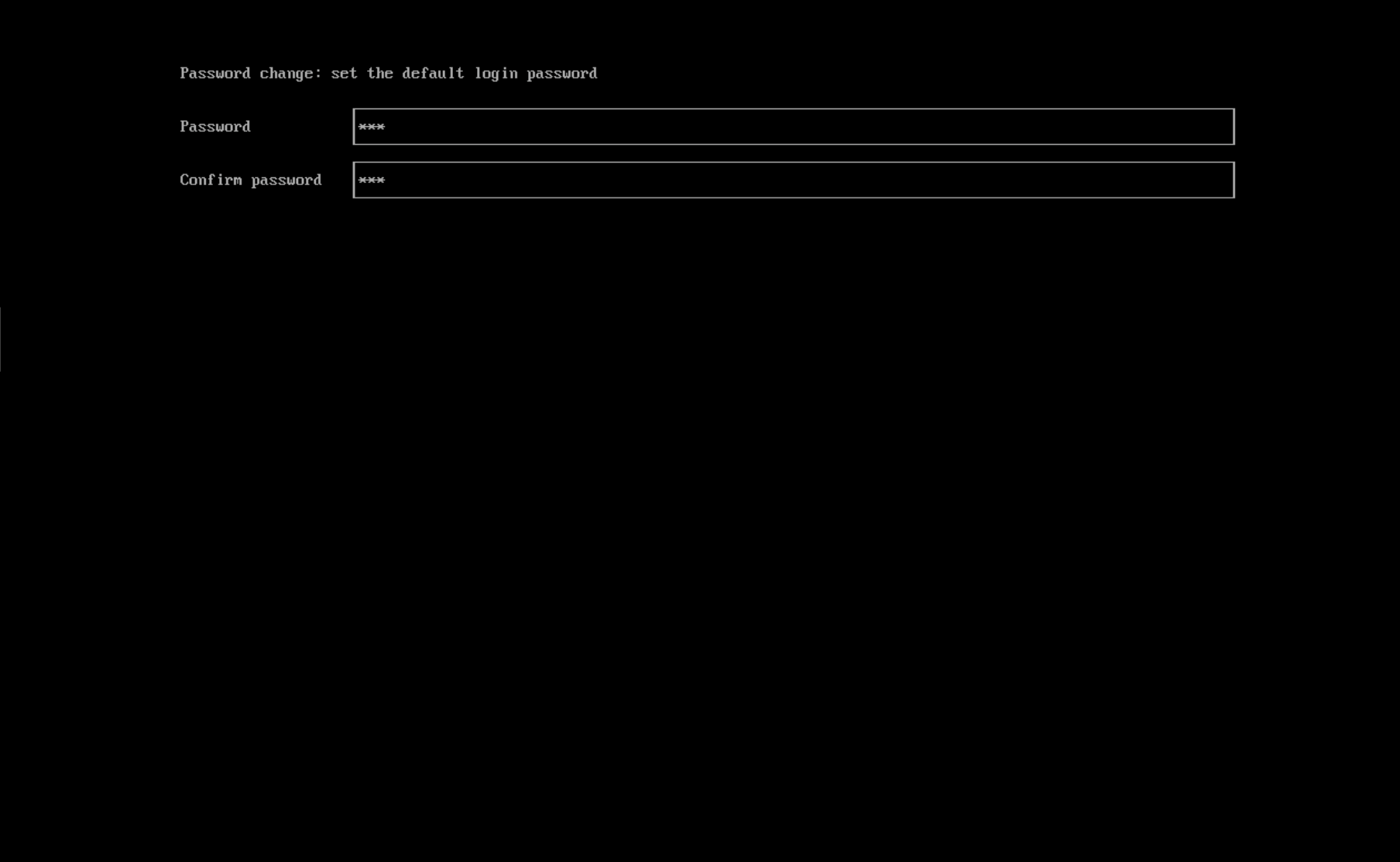
Choose the installation disk you want to install the Hypervisor cluster on and the data disk you want to store VM data on. By default, Hypervisor uses GUID Partition Table (GPT) partitioning schema for both UEFI and BIOS. If you use the BIOS boot, then you will have the option to select Master boot record (MBR).
importantSupport for legacy BIOS booting is deprecated in v1.7.0 and will be removed in a later release. Existing Hypervisor clusters that use this boot mode will continue to function, but upgrading to later versions may require re-installation in UEFI mode. To avoid issues and disruptions, use UEFI in new installations.
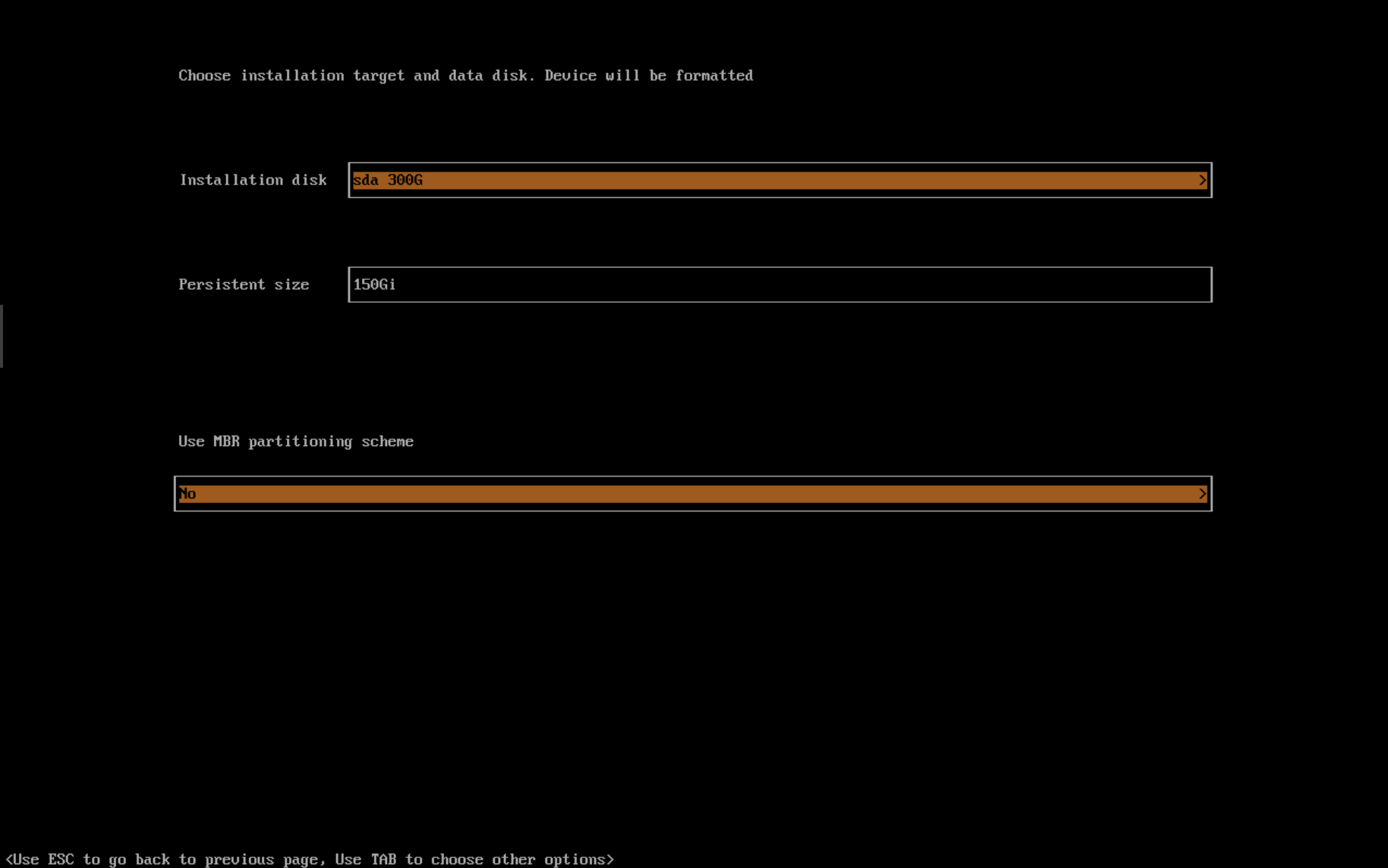
Installation disk: The disk to install the Hypervisor cluster on.Data disk: The disk to store VM data on. Choosing a separate disk to store VM data is recommended. Not applicable for witness nodes.Persistent size: If you only have one disk or use the same disk for both OS and VM data, you need to configure persistent partition size to store system packages and container images. The default and minimum persistent partition size is 150 GiB. You can specify a size like 200Gi or 153600Mi.
Configure the
HostNameof the node.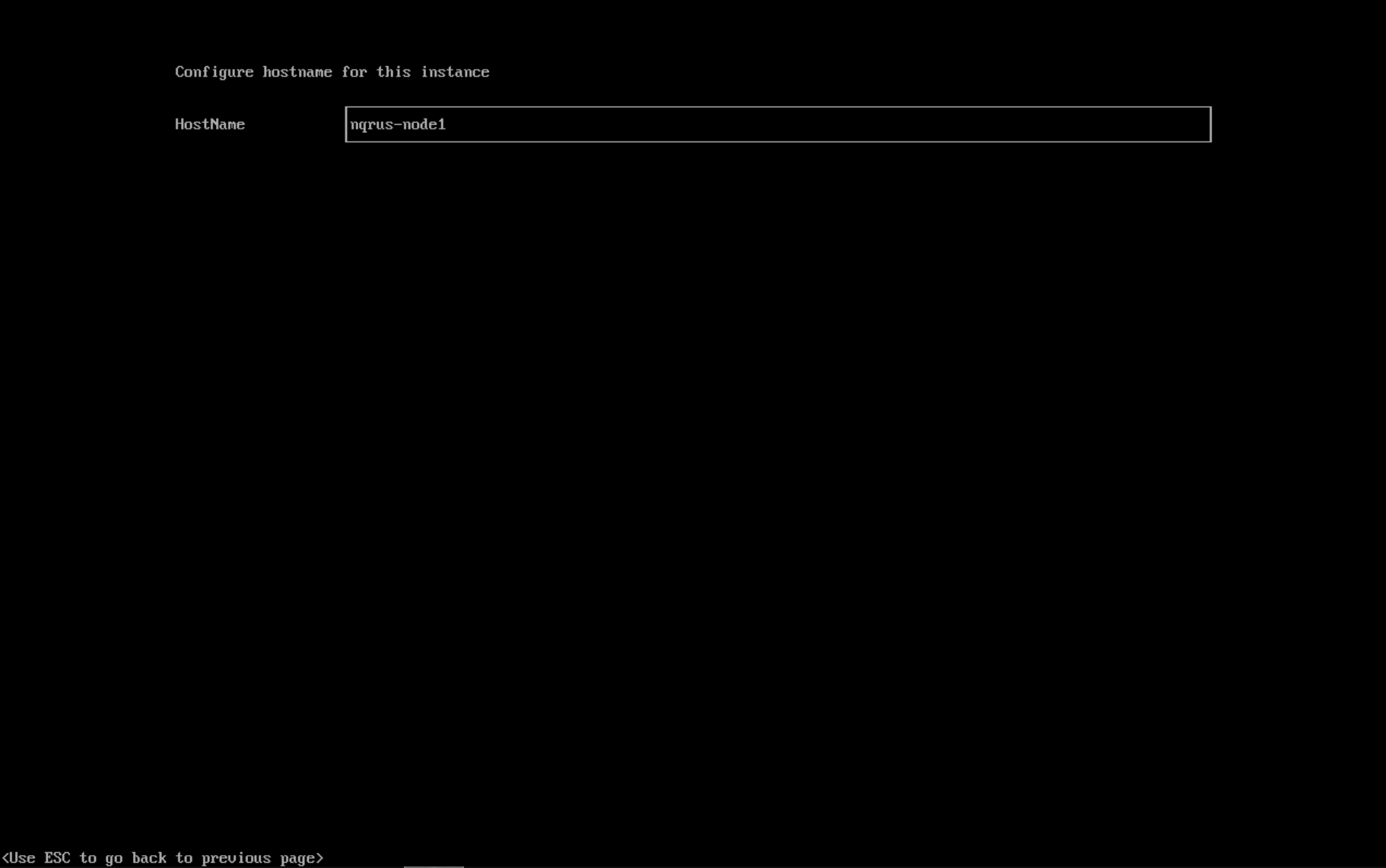
Configure network interface(s) for the management network. By default, Hypervisor creates a bonded NIC named
mgmt-bofor the built-in management cluster network, and the IP address can be configured via DHCP or statically assigned.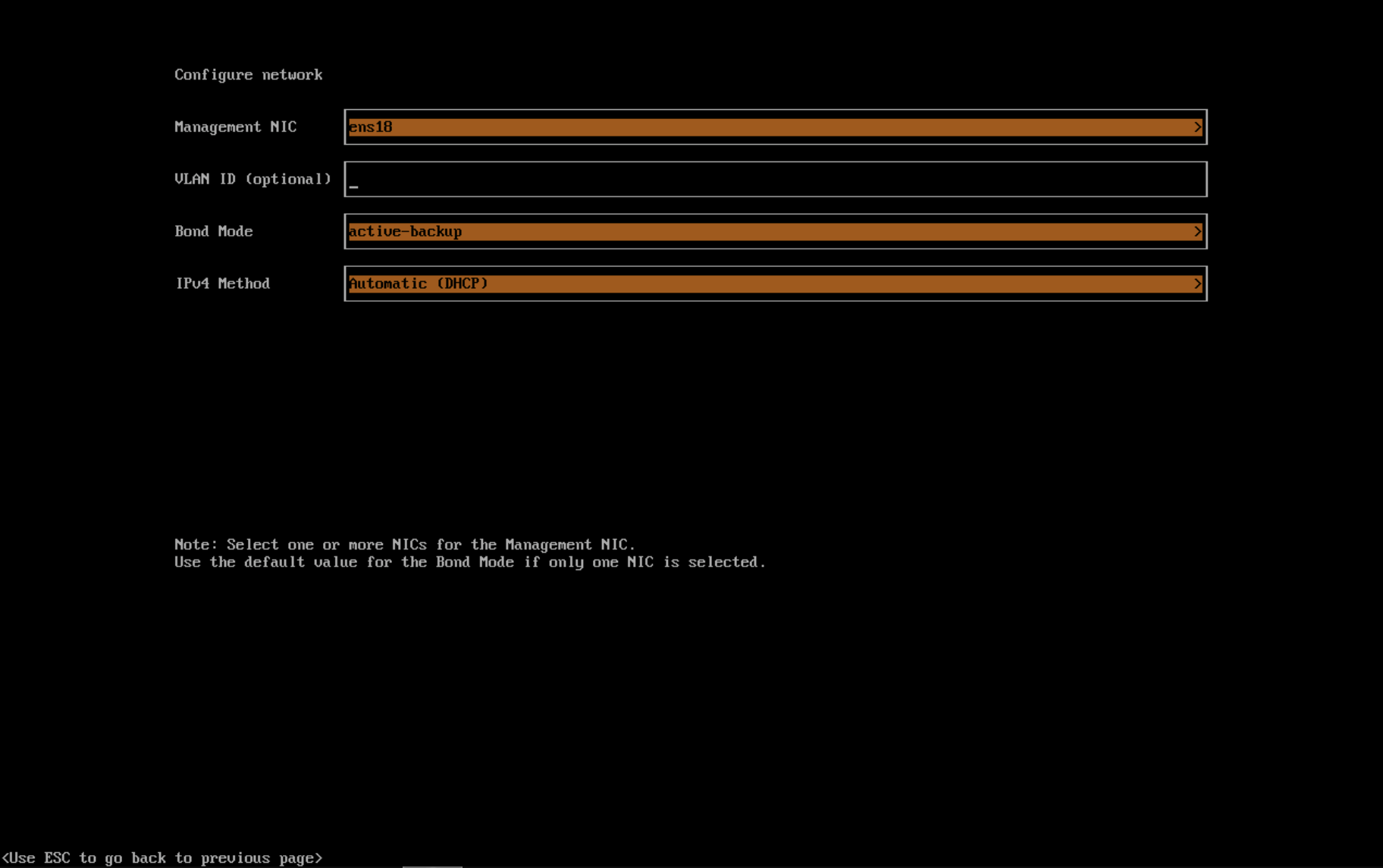 note
notePhysical switches connected to
bonded NICmust be configured strictly as trunk ports. These ports must accept tagged traffic and send traffic tagged with the VLAN ID used by the VM network.It is not possible to change the node IP throughout the lifecycle of a Hypervisor cluster. If using DHCP, you must ensure the DHCP server always offers the same IP for the same node. If the node IP is changed, the related node cannot join the cluster and might even break the cluster.
In addition, you are required to add the routers option (
option routers) when configuring the DHCP server. This option is used to add the default route on the Hypervisor host. Without the default route, the node will fail to start. For example:Linux~ # ip route
default via 192.168.122.1 dev mgmt-br proto dhcpFor more information, see DHCP Server Configuration.
The default MTU value of the bonded NIC is
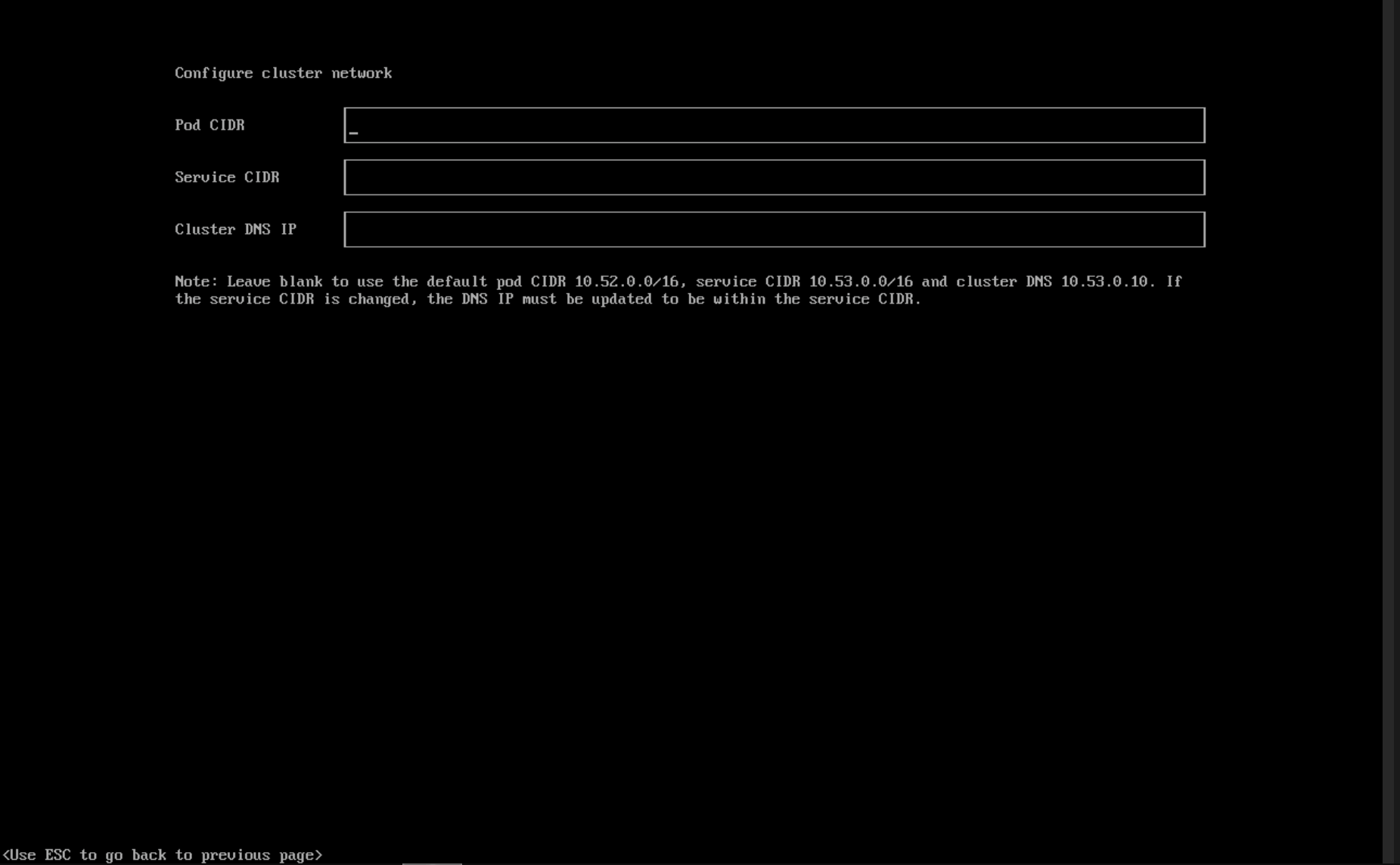
1500. If you require a different MTU value, configure theinstall.management_interfacesetting in a Hypervisor configuration file per following step.(Optional) Configure the CIDRs for the cluster pods and services.
If you want to use the default values, leave the fields blank.
:::info important
The CIDR values must not overlap and must be within the private IP address range of 10.0.0.0/8, 172.16.0.0/12, or 192.168.0.0/16.
The DNS service IP must be within the range defined by the Service CIDR field.
:::
Example of a valid CIDR configuration:
- Pod CIDR: 172.16.0.0/16
- Service CIDR: 172.22.0.0/16
- Cluster DNS IP: 172.22.0.10
(Optional) Configure the
DNS Servers. Use commas as a delimiter to add more DNS servers. Leave it blank to use the default DNS server.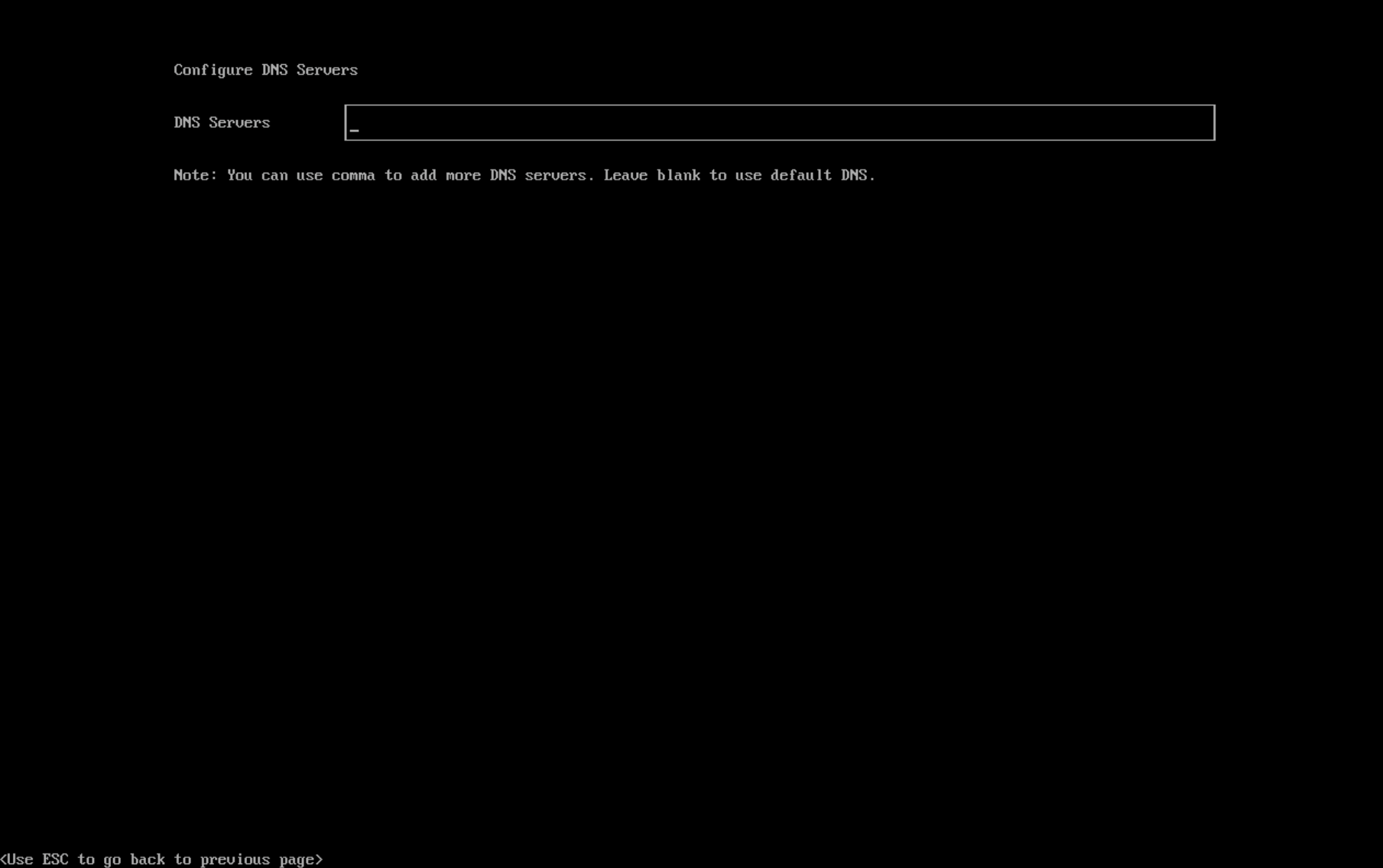
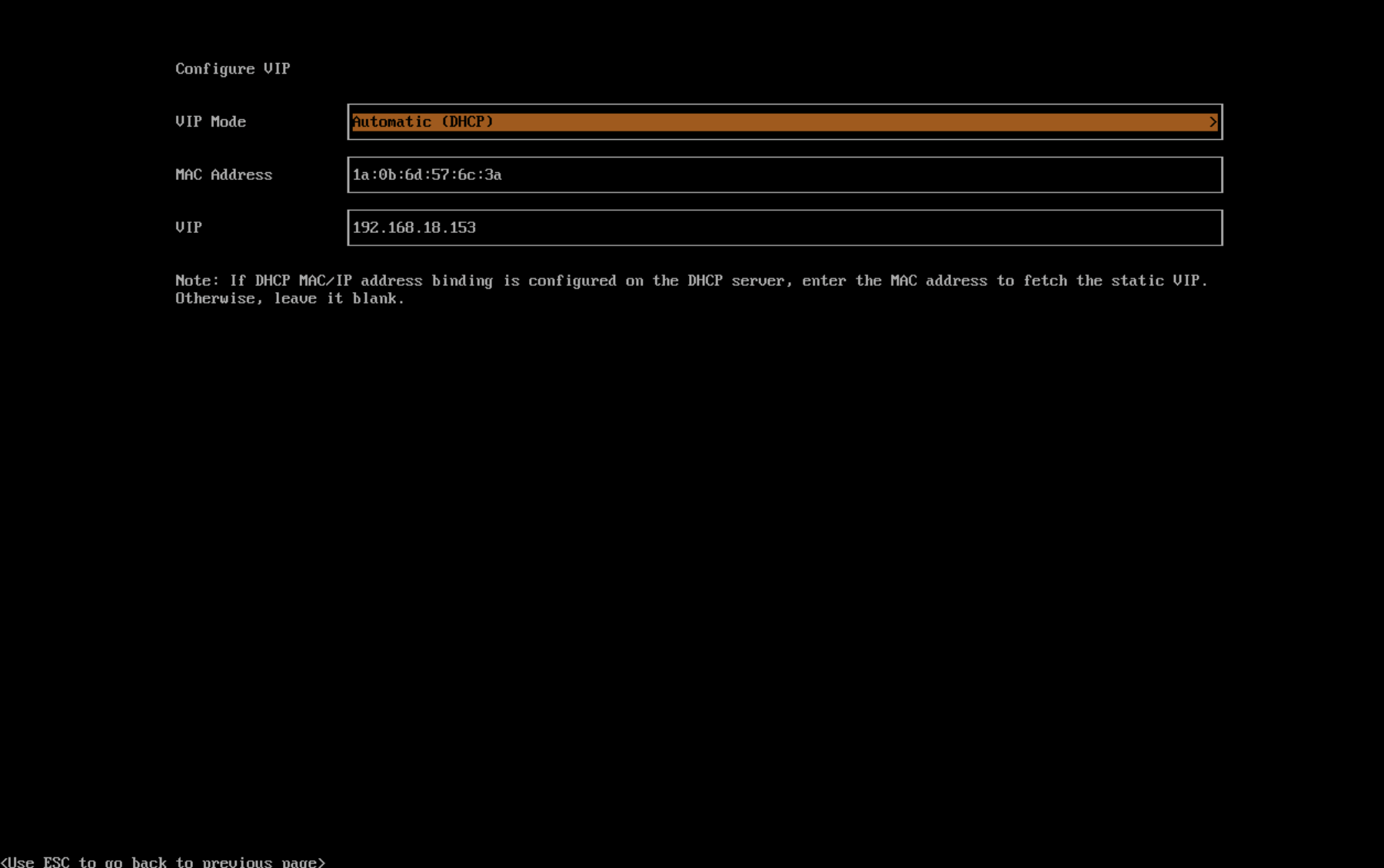
Configure the virtual IP (VIP) by selecting a
VIP Mode. This VIP is used to access the cluster or for other nodes to join the cluster.noteFor DHCP setup with static MAC-to-IP address mappings configured, enter the MAC address in the provided field to fetch the unique persistent virtual IP (VIP). Otherwise, leave it blank.
Configure the
Cluster token. This token is used for adding other nodes to the cluster.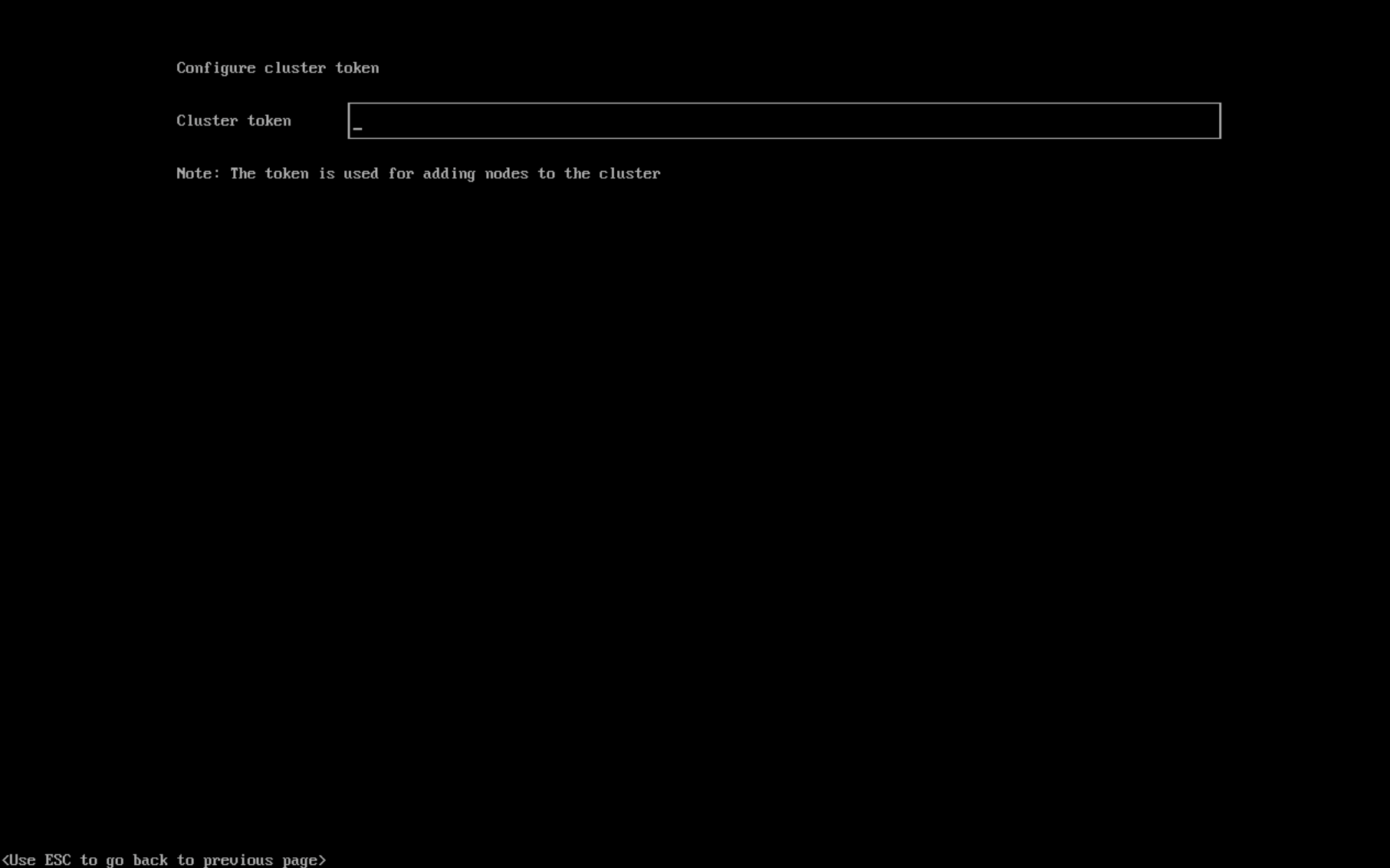
Configure
NTP serversto make sure all nodes' times are synchronized. This defaults to0.suse.pool.ntp.org. Use commas as a delimiter to add more NTP servers.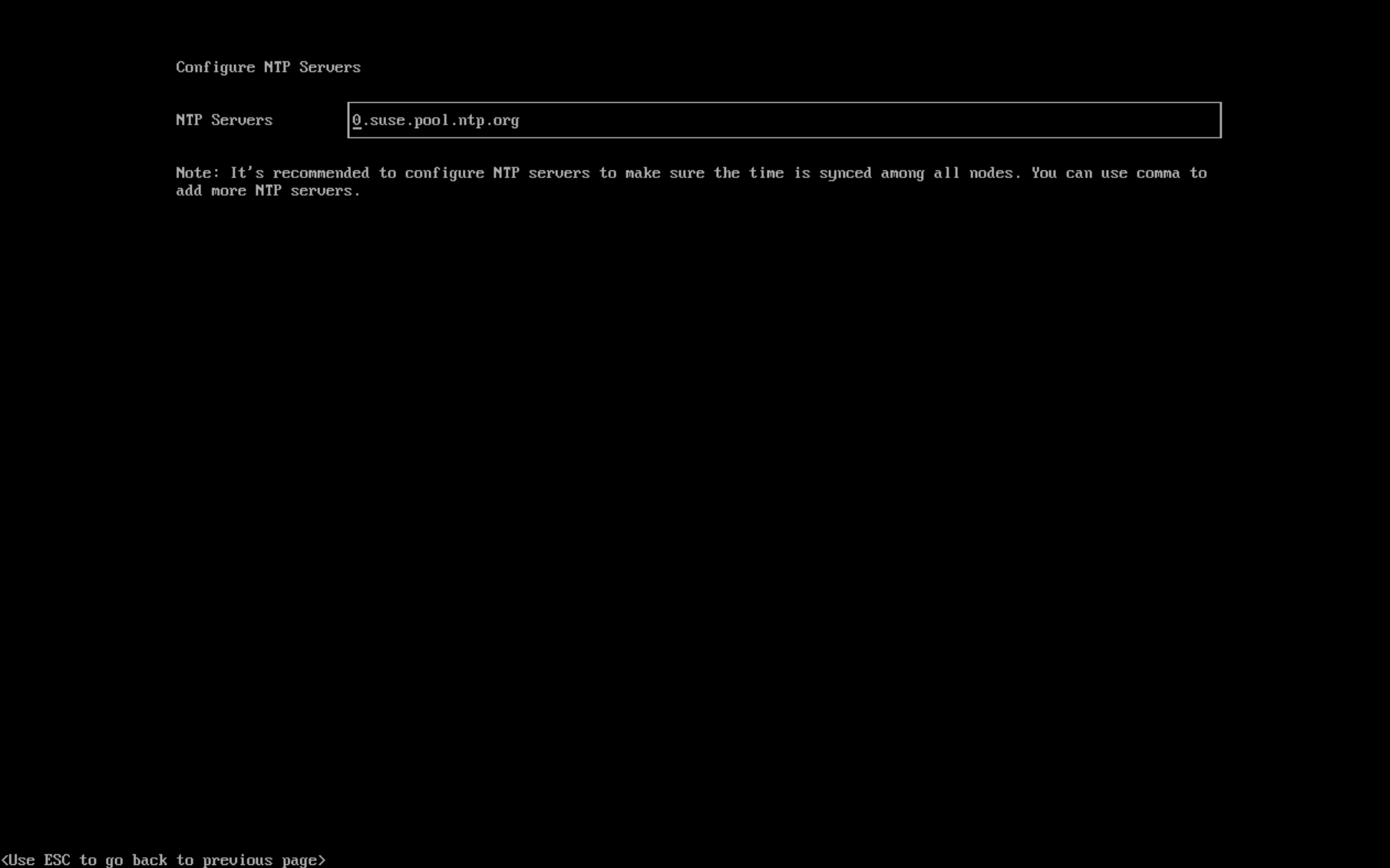 note
noteUsing multiple NTP servers provides redundancy, better accuracy, fault tolerance, and improved performance. It ensures that time synchronization continues even if one server fails or gives incorrect data, and it helps distribute the load across different servers.
(Optional) If you need to use an HTTP proxy to access the outside world, enter the
Proxy address. Otherwise, leave this blank.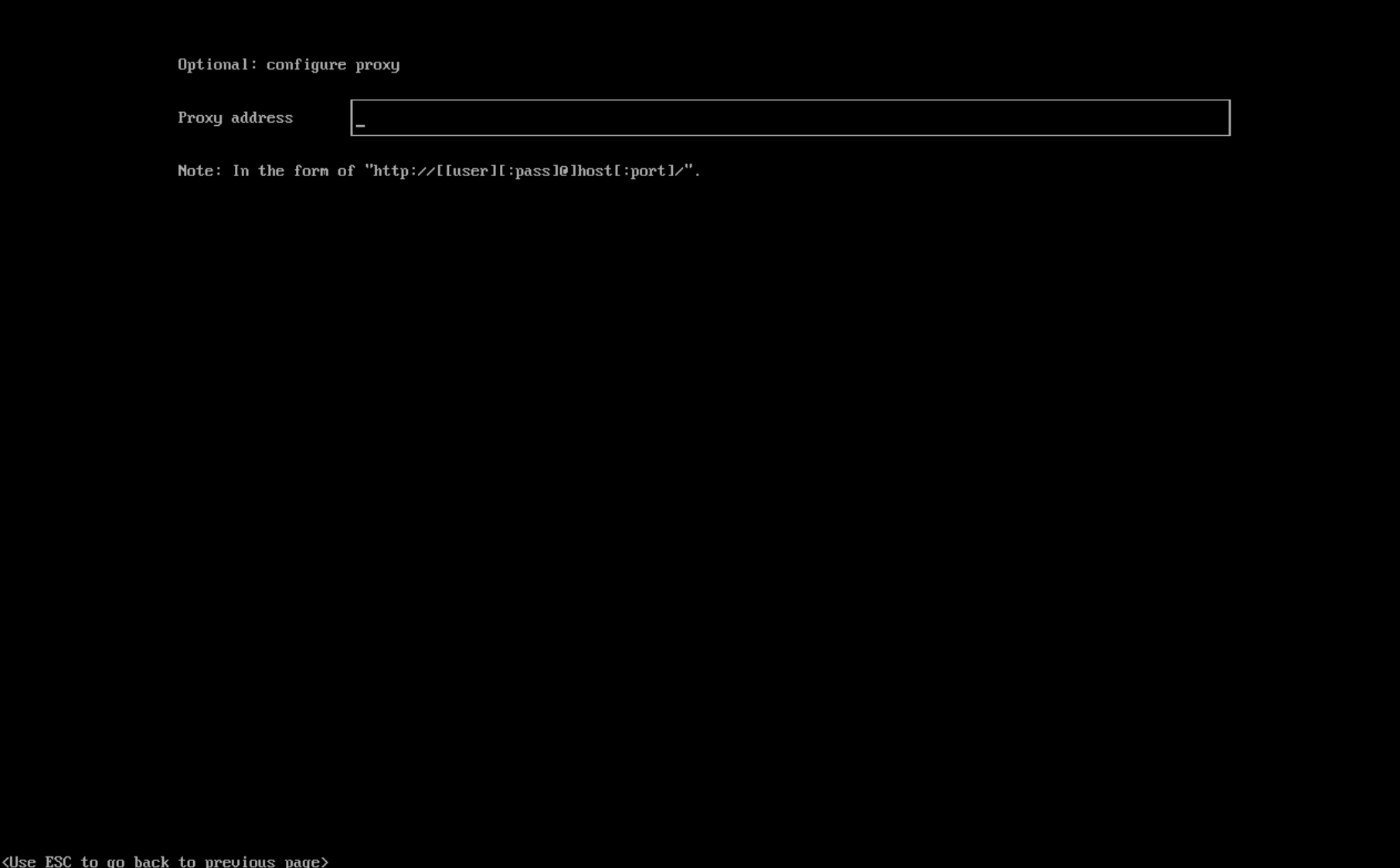
(Optional) You can choose to import SSH keys by providing
HTTP URL. For example, your GitHub public keyshttps://github.com/<username>.keyscan be used.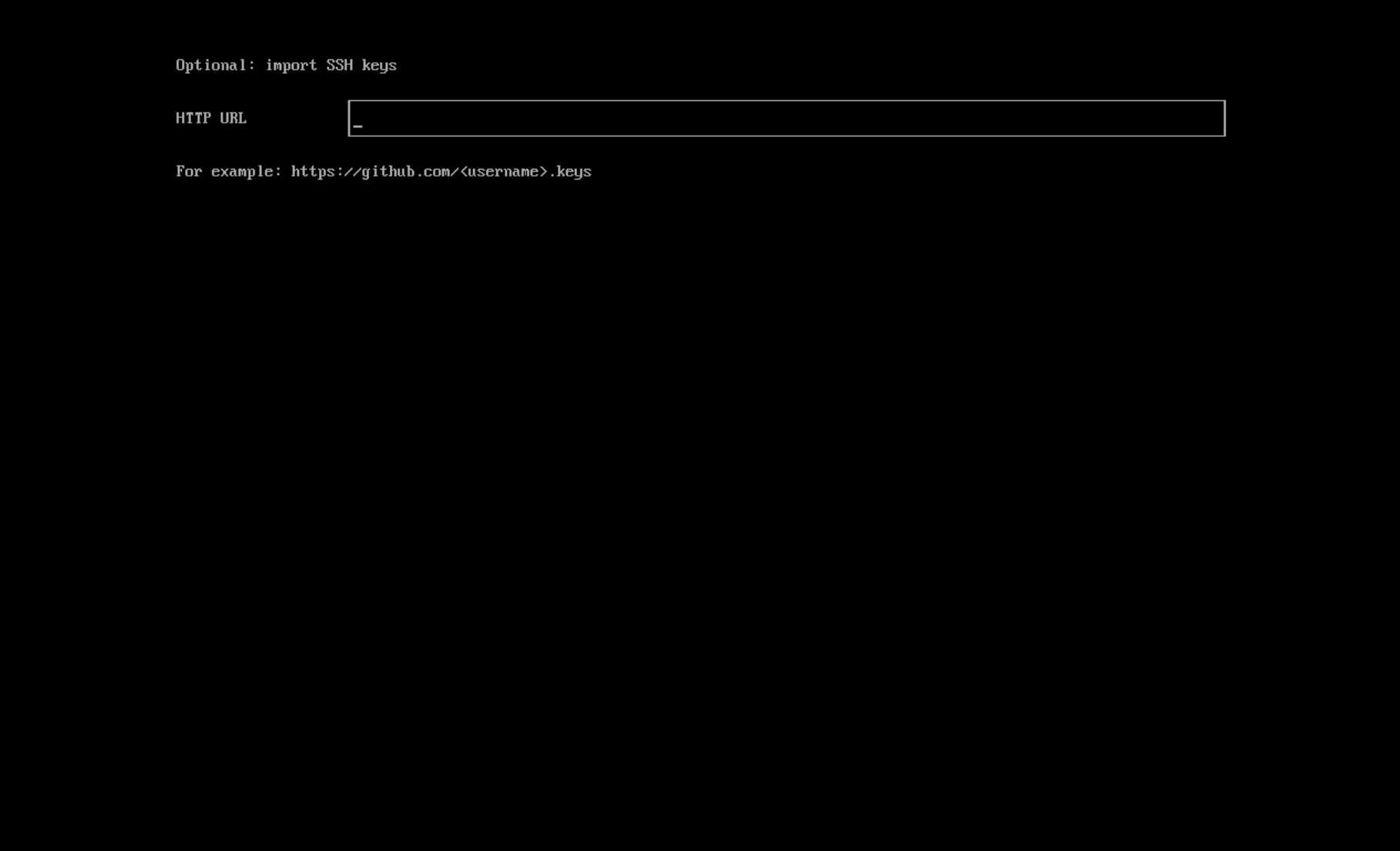
(Optional) If you need to customize the host with a Hypervisor configuration file, enter the
HTTP URLhere.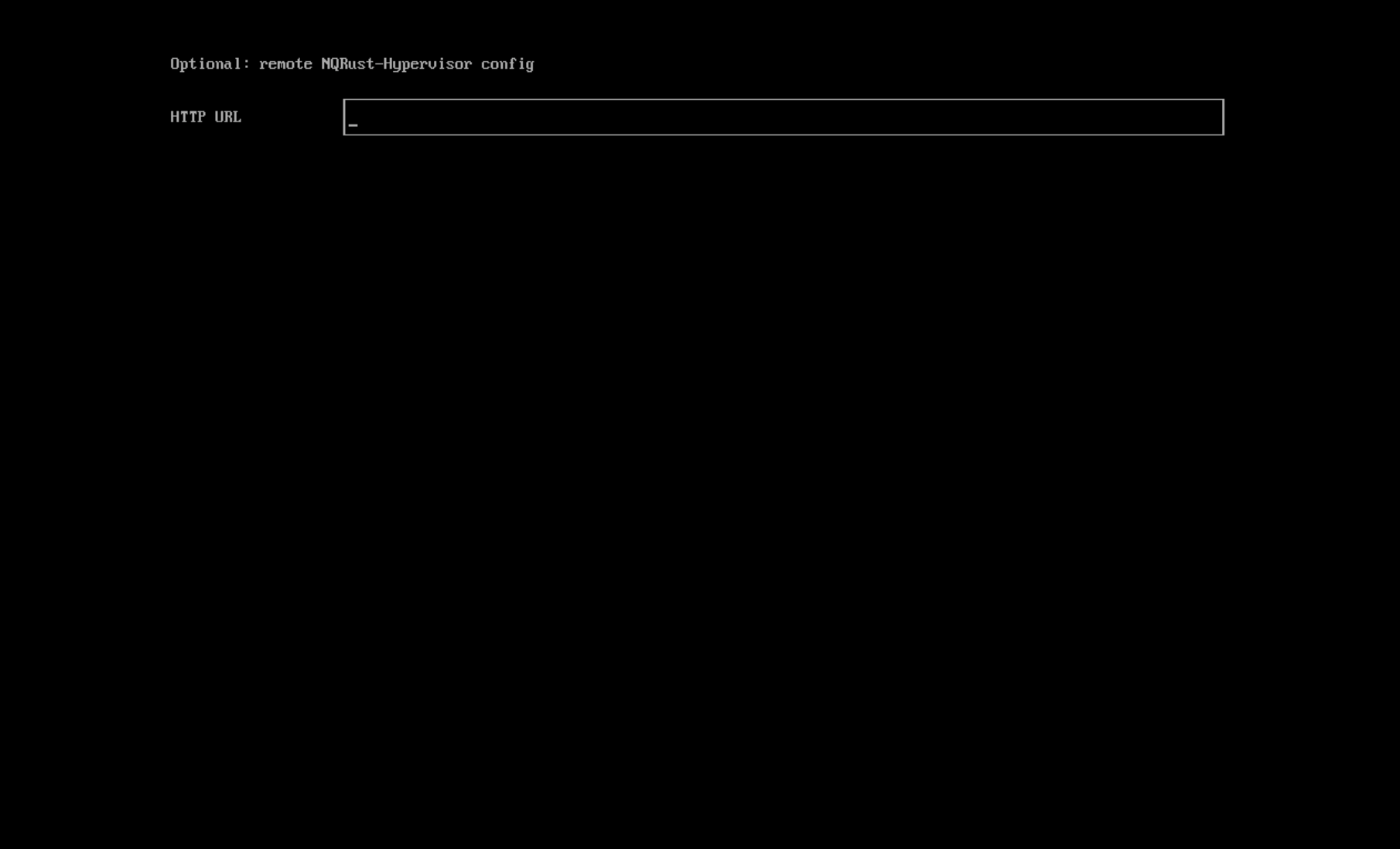
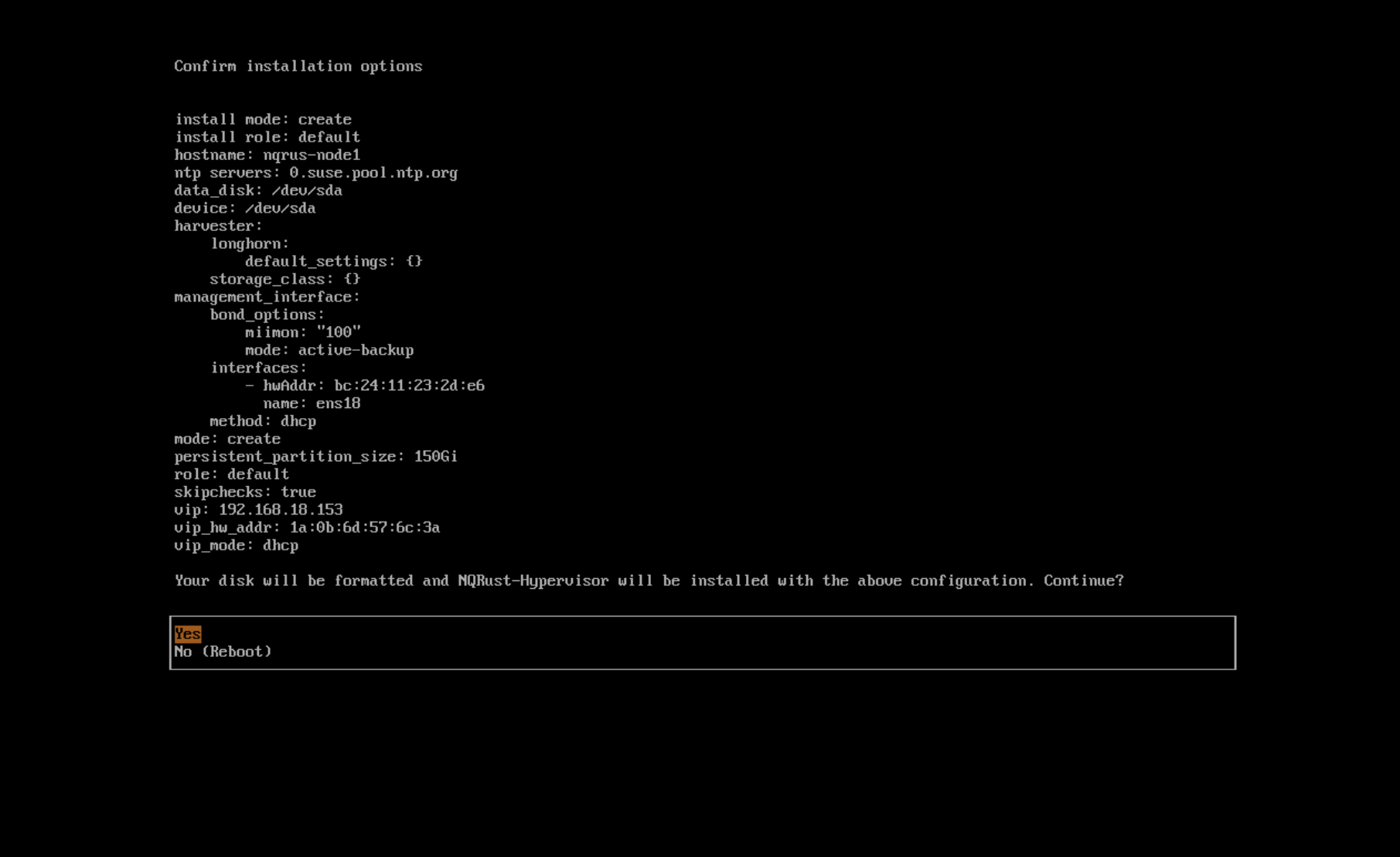
Review and confirm your installation options. After confirming the installation options, Hypervisor will be installed to your host. The installation may take a few minutes to be complete.
Once the installation is complete, your node restarts. After the restart, the Hypervisor console displays the management URL and status. The default URL of the web interface is
https://your-virtual-ip. You can useF12to switch from the Hypervisor console to the Shell and typeexitto go back to the Hypervisor console.noteChoosing
Install Hypervisor binaries onlyon the first page requires additional setup after the first bootup.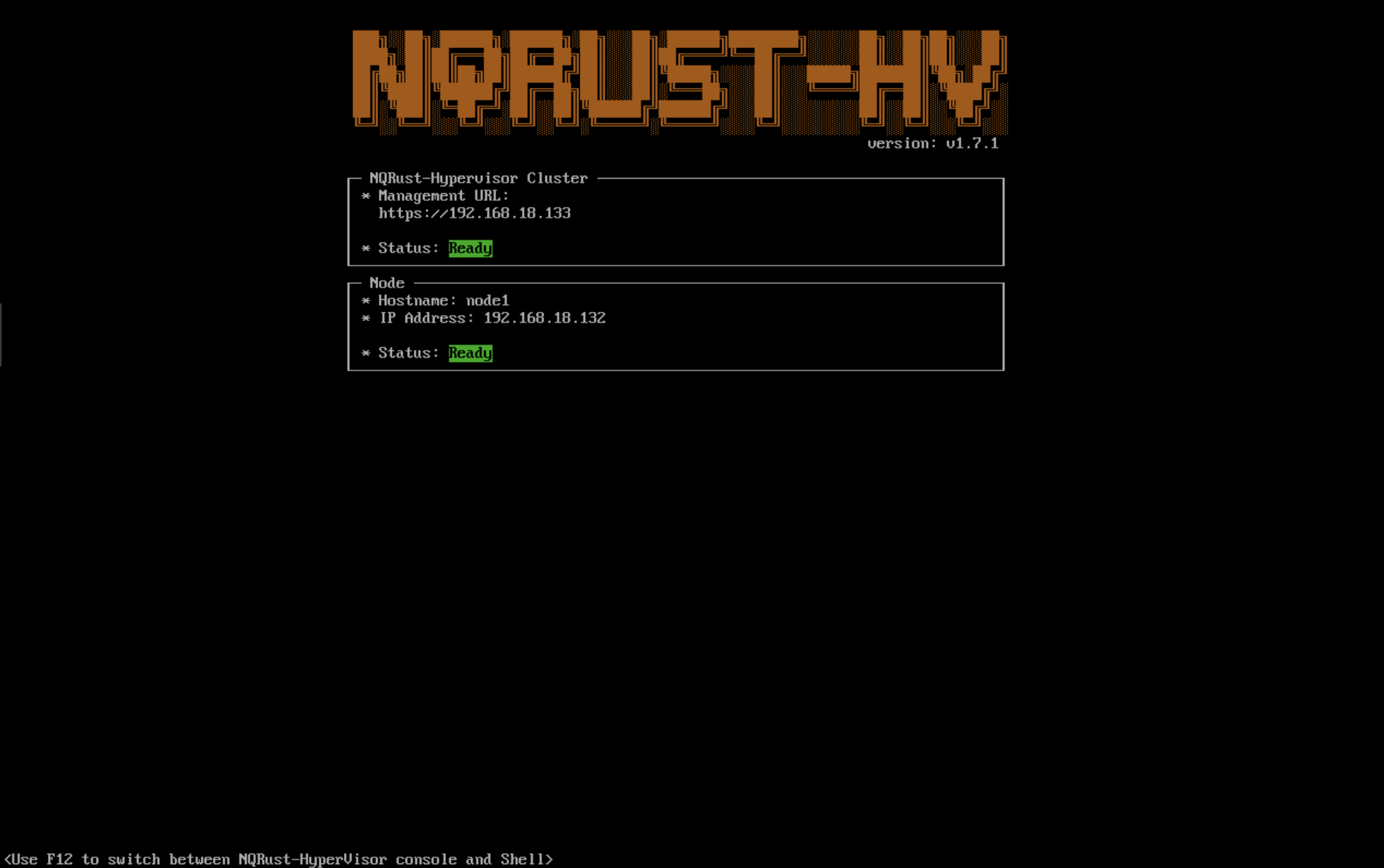
License
After the Hypervisor installation is completed successfully, you will be prompted to create a new password.
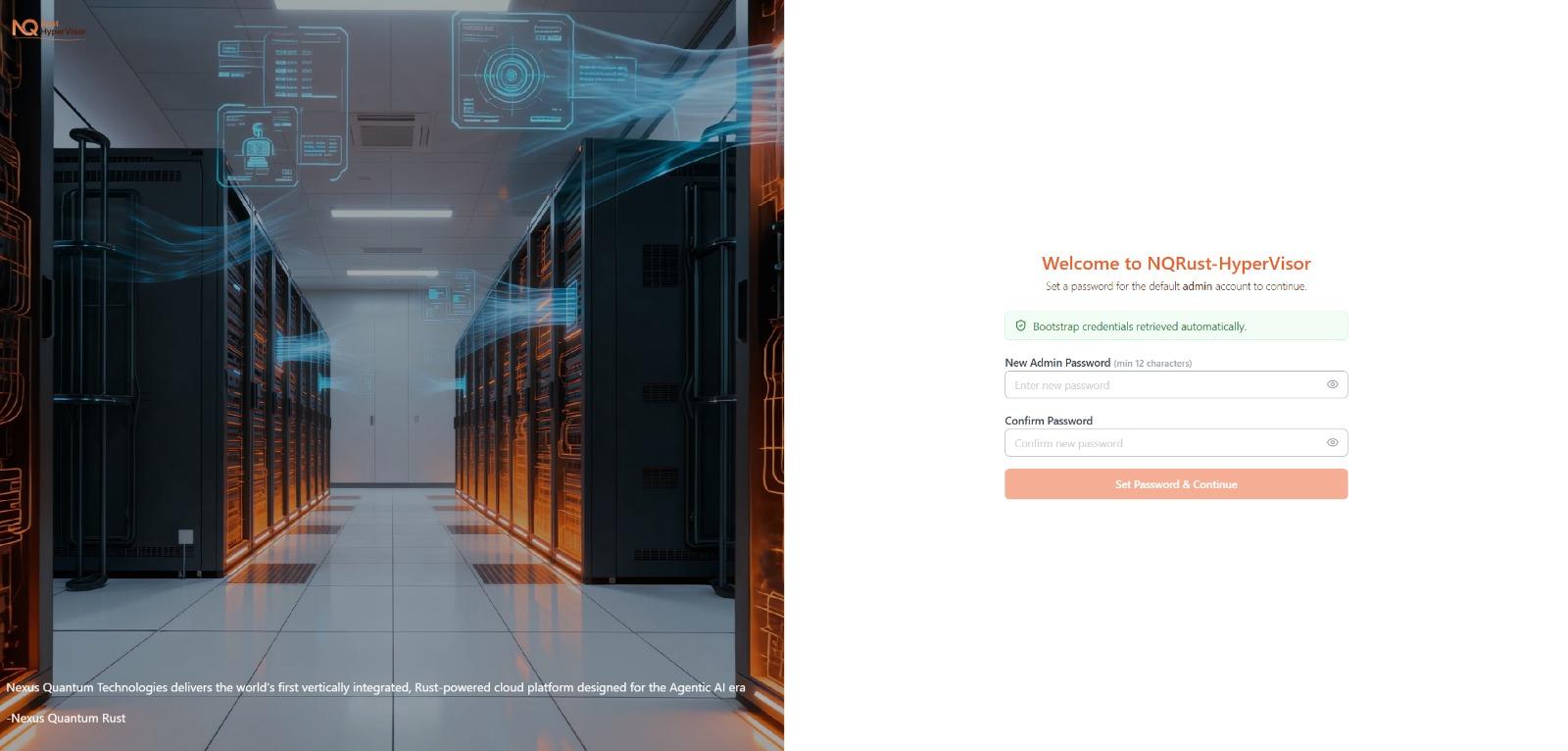
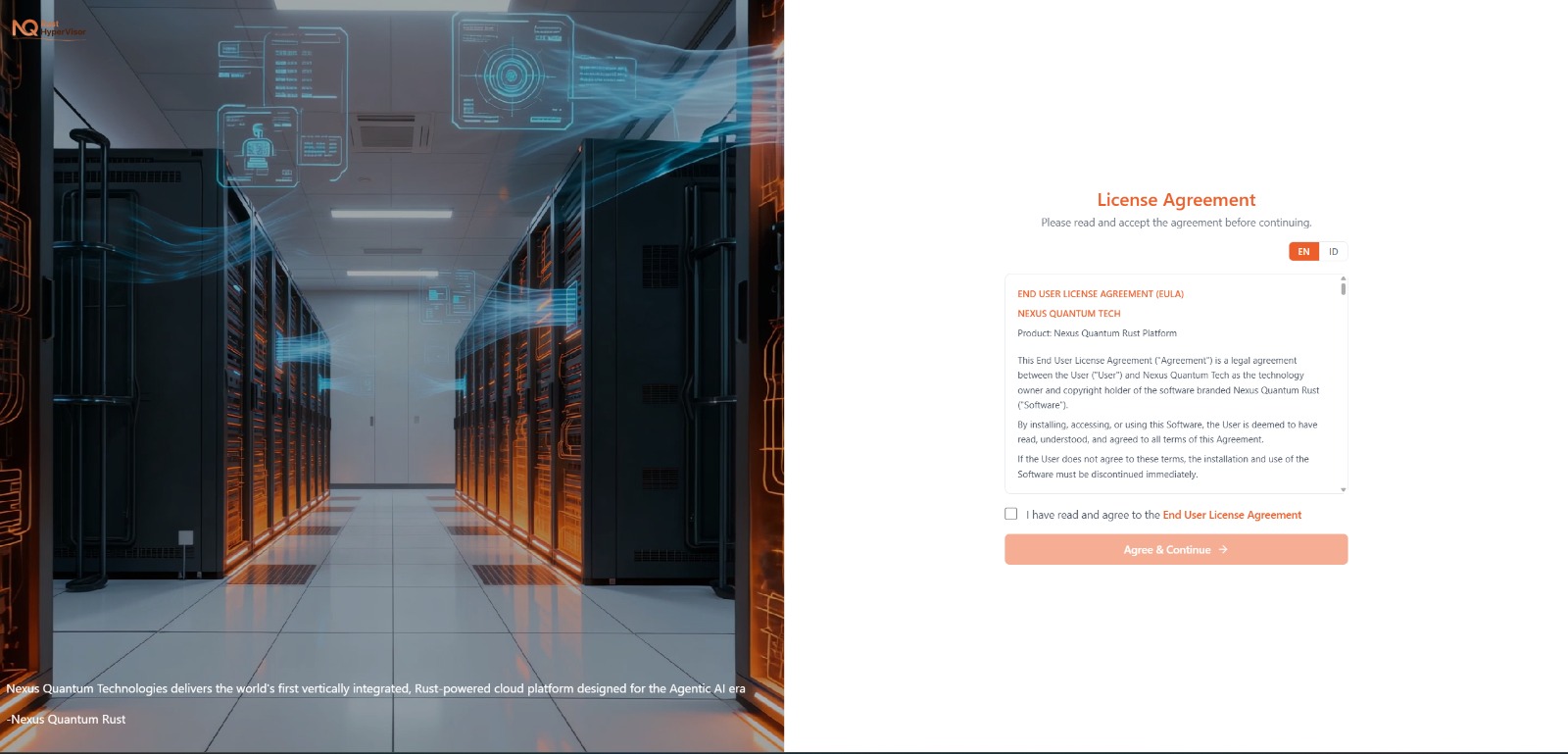
Once the password has been set, the system will display the License Agreement (EULA) page. Select the language (EN/ID) if needed, review the terms, tick "I have read and agree to the End User License Agreement," then click Agree & Continue to proceed.
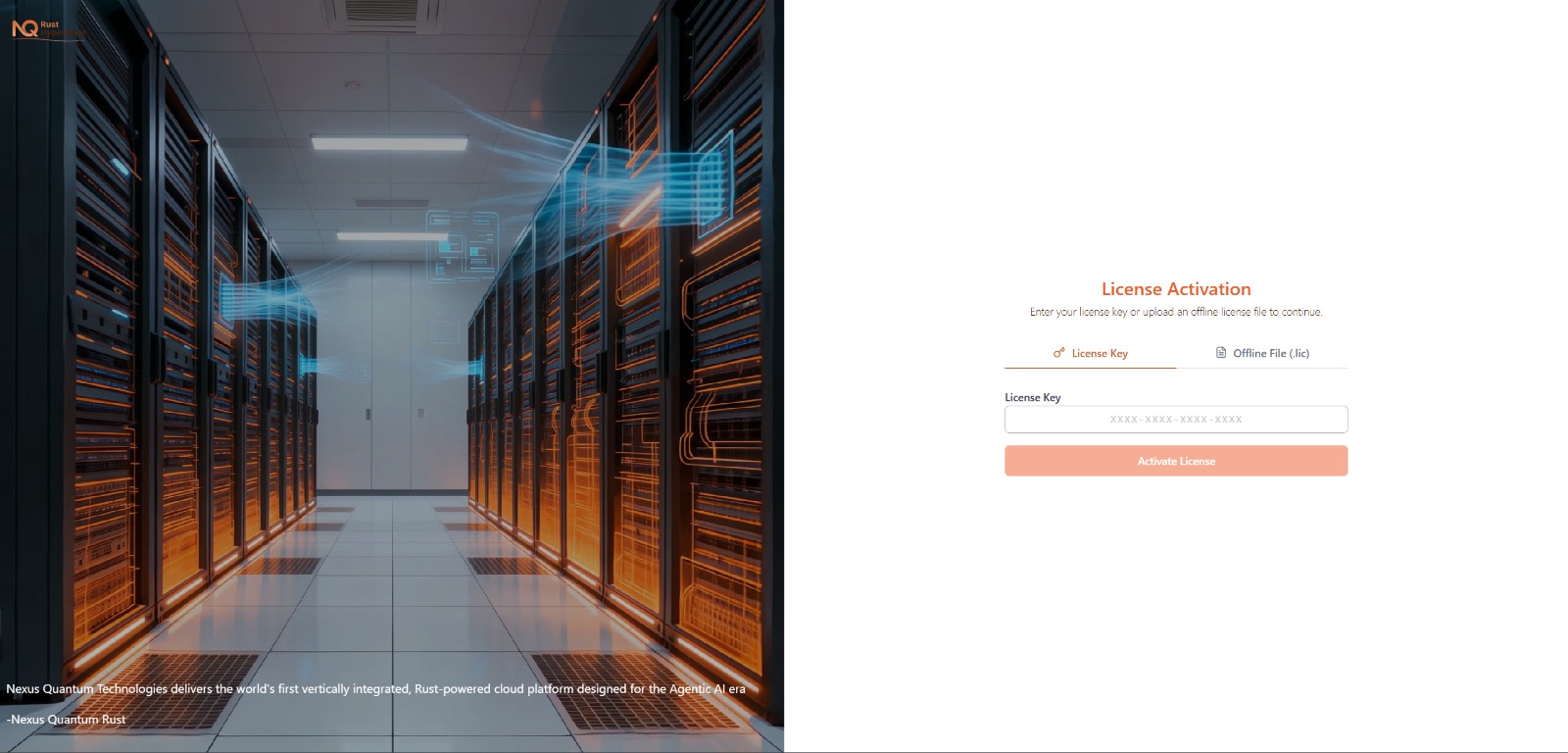
After accepting the EULA, you will be redirected to the License Activation page. Activate the product using one of the following methods:
- Option 1: Enter a License Key. Stay on the License Key tab, paste your license key in the input field (format:
XXXX-XXXX-XXXX-XXXX), then click Activate License. If you do not have the license code yet, contact Nexus Quantum Tech atcontact@nexusquantum.id. - Option 2: Upload an Offline License File (
.lic). Switch to the Offline File (.lic) tab, upload the.licfile you received, then proceed with activation. If you do not have the offline license file yet, contact Nexus Quantum Tech atcontact@nexusquantum.id.
Once the license is successfully activated, the system will continue to the next setup step automatically.
- Option 1: Enter a License Key. Stay on the License Key tab, paste your license key in the input field (format:
Once the license has been successfully activated, you will see the "License Activated" confirmation page. Verify that:
- Status shows
Active - Product displays
NQRust-HyperVisor - Valid Until shows the correct expiry date
Click Continue to Login Page to proceed. If you do not click it, the system will automatically redirect you to the login page after a few seconds.

- Status shows
Known Issue
Installer may crash when using an older graphics card/monitor
We are working on this known issue and planning a fix for a future release. You can try to use another GRUB entry to force it to use the resolution of 1024x768 when booting up.
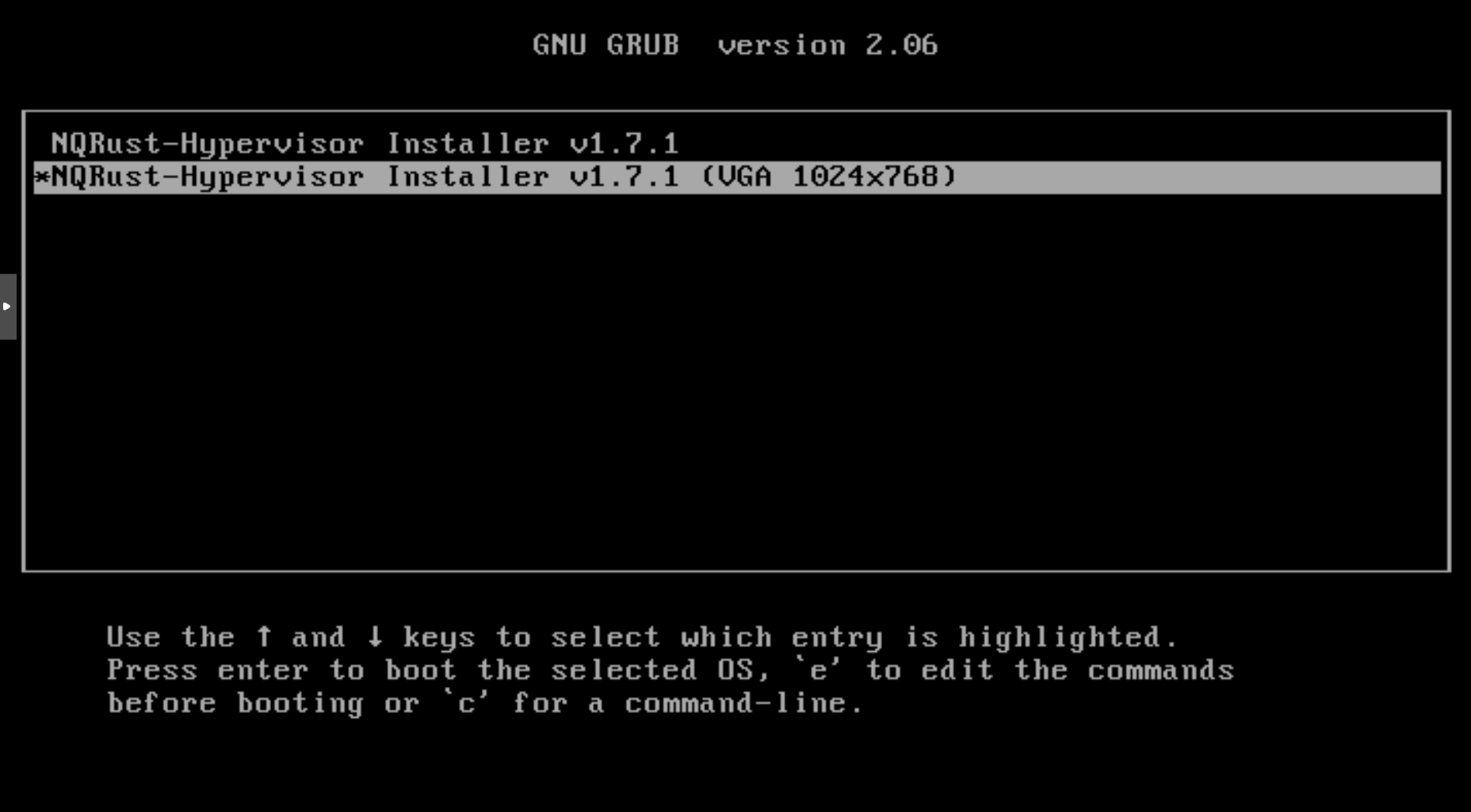
following workaround:
Boot up with the ISO, and press
Eto edit the first menu entry: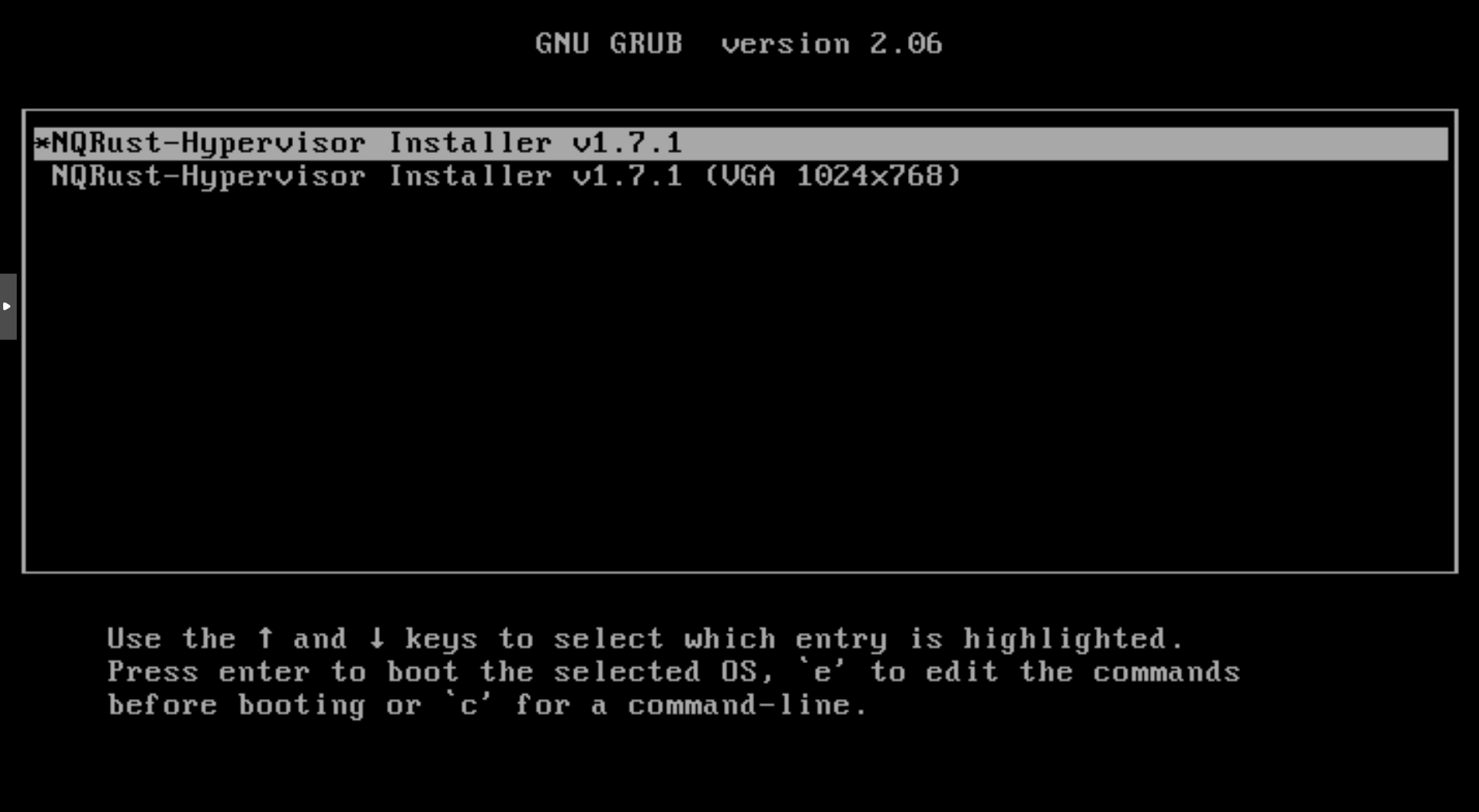
Append
vga=792to the line started with$linux: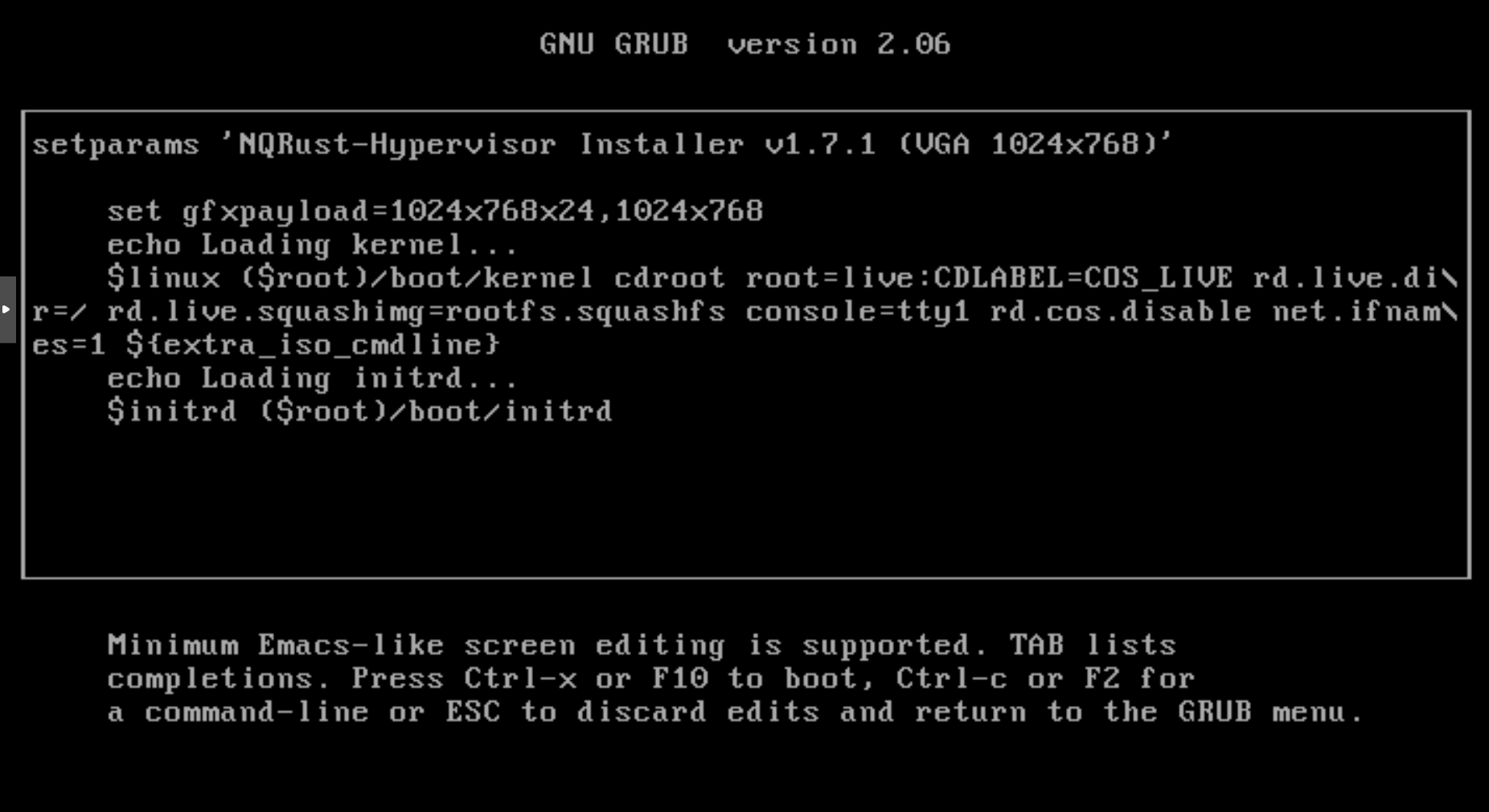
Press
Ctrl+XorF10to boot up.